
Quick summary
At a glance: common challenges
- Inaccessible PDFs, poor colour contrast, missing image descriptions
- Generic assistive equipment that doesn’t match actual needs
- Agreed exam adjustments not always delivered in practice
- LMS navigation that blocks screen reader use
At a glance: quick strategies
- Provide materials as structured, accessible documents by default
- Describe visuals and diagrams out loud during teaching
- Ask the student what support genuinely helps them
- Verify agreed adjustments reach everyone delivering an exam
1. Introduction and Overview
Visual impairment in higher education ranges from low vision to total blindness, and includes conditions that are stable, progressive, or fluctuating. As with other disabilities, environments and materials are typically built around sighted assumptions — text-heavy slides, image-only documents, visual-only signage — which can exclude students not because of their vision itself, but because of how information and space are designed.
This chapter draws on UK lived-experience research into blind and visually impaired students’ access to and participation in higher education, the Finn persona and associated Accessible Academy guidance, and a detailed barrier-to-solution mapping exercise covering teaching materials, online systems, campus navigation, and assessment.
Why this matters
2. Understanding the Disability
What this covers
- Visual impairment spans a spectrum from low vision (some useful sight, often supported by magnification) to total blindness, and can be present from birth or acquired later in life.
- Some conditions are stable, others are progressive or fluctuate, which affects how consistently a student can rely on a given level of vision.
- Students use a range of methods to access information: screen readers, Braille, magnification, audio, and large print, often in combination.
Common misconceptions
- That all visually impaired students use, want, or benefit from the same equipment: research found students being given equipment (such as a computer mouse, or a Braille display before they had learned Braille) that did not match their actual needs, simply because it was standard issue.
- That a student’s own assessment of what they can or cannot do should be second-guessed by staff: lived-experience research documents students having their competence directly questioned by staff, including in contexts as significant as career guidance.
- That accessibility support, once assessed and arranged, will reliably be delivered: research found repeated cases of agreed adjustments (accessible exam formats, extra time) simply not being provided.
- That visual impairment only affects reading: it also affects orientation and navigation, participation in visual or diagrammatic content, and independent use of digital systems.
3. Common Challenges in Higher Education
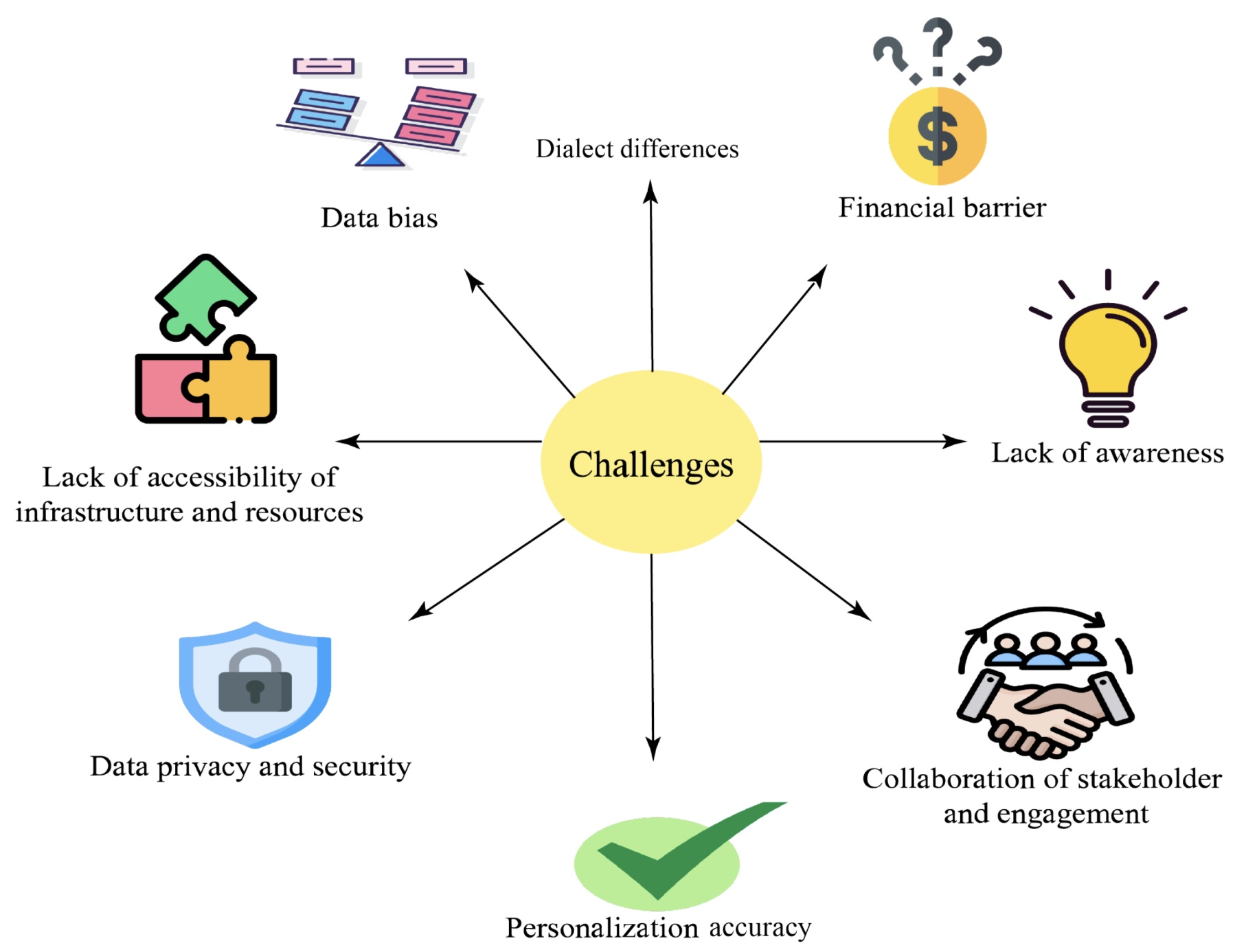
- Materials and systems designed around sighted use by default: inaccessible PDFs, uncaptioned media, and visual-only signage.
- A significant, often invisible administrative burden falls on the student to identify, request, and chase up adjustments, rather than these being embedded as standard practice.
- Support that is assessed generically rather than matched to the individual — leading to unused, mismatched equipment and wasted assessment time.
- Attitudinal barriers, including staff doubting a student’s own judgement of their capabilities, which research found could affect decisions as significant as career and course choice.
- Agreed adjustments (accessible exam formats, extra time) not always reliably delivered in practice, even once formally arranged.
- Time and energy spent managing access barriers can reduce a student’s capacity to take part in work experience, societies, and other activities important for future employability.
4. Barriers Faced by Students
| Barrier type | What it looks like in practice |
|---|---|
| Teaching materials | Inaccessible or image-only PDFs and scans; poor colour contrast; missing or incorrect descriptions for diagrams, graphs, and images; slides incompatible with screen readers. |
| Online systems (VLE/LMS) | Navigation that blocks keyboard and screen-reader use; visual tables used for layout instead of proper data tables; uncaptioned video with no transcript. |
| Campus wayfinding | Visual-only signage; little or no tactile or audio wayfinding; unpredictable layout changes with no advance notice. |
| Exams / assessment | Exam papers as locked, non-searchable image-only PDFs; assessment platforms incompatible with screen readers; adjustments arranged too late to be usable. |
| Administrative / attitudinal | Generic rather than individually matched equipment; staff questioning a student’s own judgement of their capabilities; inaccessible application or enrolment systems. |
5. Inclusive Teaching Strategies
Before class
- Provide materials in accessible formats: tagged, structured, searchable documents rather than scanned images.
- Use structured headings in Word/PDF documents so screen readers can navigate them properly.
- Add meaningful alternative text to every image, and check colour contrast before sharing materials.
During lectures
- Verbally describe visuals, diagrams, and any information conveyed only through a slide.
- Read aloud key written information rather than assuming it will be seen.
- Share detailed lecture notes and structure in advance of the session.
- Allow and support audio recording of lectures.
Group work
- Ensure any shared visual materials (diagrams, whiteboard notes) are also described or provided in an accessible format to the whole group.
Practical sessions
- Describe physical layouts and materials verbally, and check equipment and fieldwork settings for accessibility in advance.
Online learning
- Ensure all interactive online features support clean keyboard navigation, not only mouse or touch input.
- Caption video content and provide full text transcripts.
Assessment
- Offer accessible digital assessment formats and confirm agreed adjustments (extra time, compatible platforms) are actually in place well before the assessment date.
6. Classroom Accommodations
- Materials provided in accessible, structured formats ahead of each session, not adapted only on request after a problem arises.
- Individually matched equipment and support, confirmed directly with the student rather than issued as a generic package.
- Permission and support for audio recording of lectures.
- Preferential seating where relevant for any residual vision or use of assistive devices.
- A named contact for the student to flag inaccessible materials or systems quickly, with a fast turnaround for fixing them.
7. Digital Accessibility Considerations
| Barrier | Inclusive solution |
|---|---|
| Inaccessible PDFs / scanned graphics | Generate natively structured, searchable digital documents; preserve a clean semantic text layer rather than flat images. |
| Slides not compatible with screen readers | Use clean, logical header outlines and correct reading order. |
| Missing alternative text for visuals | Apply meaningful alt text to every image and give detailed verbal descriptions during teaching. |
| LMS navigation blocks | Ensure full keyboard navigation; avoid using visual tables purely for page layout. |
| Uncaptioned media | Provide synchronised captions and full text transcripts for all video and audio content. |
| Inaccessible exam platforms | Use accessible alternative assessment formats and confirm extra time and compatible technology are arranged well in advance. |
8. Communication Guidelines
| Do | Avoid |
|---|---|
| Describe visuals, diagrams, and slide content out loud | Rely on ‘as you can see on the slide’ without describing it |
| Ask the student what support and equipment actually helps them | Assume standard equipment or a generic package will meet their needs |
| Take the student’s own assessment of their capabilities at face value | Question or second-guess a student’s judgement of what they can do |
| Confirm agreed adjustments are actually in place before they’re needed | Assume that an adjustment being ‘agreed’ means it will be delivered |
| Introduce yourself and use the student’s name when addressing them in a group | Assume a visually impaired student can identify who is speaking by sight |
9. Environmental Adjustments
- Consistent, predictable physical layouts, with advance notice of any changes to rooms or routes.
- Tactile and audio wayfinding cues supplementing visual-only signage around campus.
- Good, even lighting and strong colour contrast in signage and printed materials.
- Clear, decluttered pathways, particularly in corridors and shared spaces.
- Quiet spaces available where concentrating on audio information (screen readers, recordings) is easier.
10. Assistive Technologies
| Technology | How and when it helps |
|---|---|
| NVDA (NonVisual Desktop Access) | Free, open-source screen reader for Windows, widely used and actively maintained. |
| JAWS (Job Access With Speech) | Established commercial screen reader for advanced Windows workflows. |
| VoiceOver | Built-in screen reader across macOS, iOS, and iPadOS. |
| OCR tools (e.g., ABBYY FineReader) | Converts scanned or image-only pages into accessible, screen-reader-readable text. |
| Magnification software | Enlarges on-screen content for students with low vision. |
| Braille displays and note-takers | Provide tactile access to digital text, matched to individual literacy in Braille. |
11. Real-Life Example / Case Study
Case Study: A student navigating a locked-format exam paper
Malika (a composite, illustrative example) is registered blind and uses a screen reader. Her disability support assessment agreed extra time and a screen-reader-compatible exam format at the start of the year. In her first-semester exam, the paper is distributed as a locked, image-only PDF that her screen reader cannot read, and the invigilator is not aware any adjustment had been agreed.
Poor practice
- An agreed adjustment is not communicated to the people actually delivering the exam.
- The exam paper itself is produced in a format that is inherently inaccessible, regardless of any individual adjustment.
Inclusive practice
- Exam papers are generated as accessible, structured, searchable documents by default, for every assessment, not adapted only when a request is received.
- A checklist confirms agreed adjustments have reached everyone responsible for delivering the assessment, with the student able to confirm this in advance.
- A fast-response contact is available on the day in case a problem is discovered too late to have been caught beforehand.
Lessons learned
- An adjustment being ‘agreed’ on paper does not guarantee it is delivered — a verification step is needed.
- Building accessible formats into the default exam production process removes the need to rely on individual adjustments working perfectly every time.
12. Practical Scenarios
Scenario A
A lecturer uses a complex diagram on a slide without describing it aloud. What do you do?
- Pause and verbally describe the diagram’s key content and structure before moving on, and provide a text description afterwards for reference.
Scenario B
A student’s disability support assessment recommends equipment the student says they don’t actually need. What do you do?
- Ask the student directly what would genuinely help, and adjust the recommendation rather than issuing the standard package regardless.
Scenario C
A student raises that the course VLE page uses visual tables that don’t work with their screen reader. What do you do?
- Rebuild the page using proper structured content and keyboard-navigable elements, and check other course pages for the same issue.
13. Do’s and Don’ts
| Do | Don’t |
|---|---|
| Provide materials as structured, accessible documents by default | Distribute scanned, image-only PDFs as standard practice |
| Describe visuals and diagrams out loud during teaching | Say ‘as you can see here’ without describing the content |
| Ask the student what support genuinely helps them | Issue standard equipment packages without checking fit |
| Verify agreed adjustments have reached everyone delivering an assessment | Assume an agreed adjustment will automatically be applied |
| Take the student’s own judgement of their capabilities seriously | Question or override a student’s assessment of what they can do |
14. Lecturer Checklist
- Are my documents and slides structured, tagged, and screen-reader compatible rather than scanned images?
- Do I verbally describe visuals, diagrams, and any information shown only on a slide?
- Have I checked colour contrast and added meaningful alt text to images I use?
- Do I share lecture notes and structure in advance of each session?
- Have I confirmed with the student what support and equipment genuinely helps them?
- Do I caption video content and provide text transcripts?
15. Student Support / Disability Services Checklist
- Has equipment and support been matched to the individual student’s actual needs, confirmed directly with them, rather than issued as a standard package?
- Have agreed exam and assessment adjustments been confirmed with everyone responsible for delivering the assessment, not just recorded on file?
- Are exam papers and materials produced in accessible, structured formats by default?
- Is campus wayfinding supplemented with tactile or audio cues, with advance notice of any layout changes?
- Is there a fast-response contact for flagging an accessibility problem on the day, not only in advance?
16. Quick Reference Guide
One-page summary
17. Key Takeaways
- Materials and systems are frequently built around sighted assumptions by default; the fix is building accessible formats in from the start, not adapting only on request.
- Support works best when matched to the individual, confirmed directly with the student — generic equipment packages waste resources and can leave students feeling unheard.
- An adjustment being formally agreed does not guarantee it is delivered; verification with everyone involved in teaching and assessment matters.
- Attitudinal barriers — staff questioning a student’s own judgement of their capabilities — can be as damaging as physical or digital ones, including in high-stakes contexts like careers guidance.
- The administrative burden of chasing access adjustments should sit with the institution, not the student, to protect time and energy for study, work experience, and campus life.
18. References
Croft, E. (2020). Experiences of visually impaired and blind students in UK higher education: An exploration of access and participation. Scandinavian Journal of Disability Research, 22(1). sjdr.se/articles/10.16993/sjdr.721
Hewett, R., Douglas, G., & McLinden, M. (2023). “They were questioning whether I would even bother coming back”. Exploring evidence of inequality in “access”, “success” and “progression” in higher education for students with vision impairment. Educational Review, 75(2), 172–194. doi.org/10.1080/00131911.2021.1907315
W3C Web Accessibility Initiative. Web Content Accessibility Guidelines (WCAG). www.w3.org/WAI/standards-guidelines/wcag/
W3C Web Accessibility Initiative. Authoring Tool Accessibility Guidelines (ATAG). www.w3.org/WAI/standards-guidelines/atag/education/
CAST (2024). Universal Design for Learning Guidelines. udlguidelines.cast.org
Sections 1–4, 7, and 10, and parts of 5–6 and 18, draw directly on the Croft (2020) and Hewett et al. (2023) lived-experience research, the Finn persona, and the barrier-to-solution mapping matrix in the project material. Sections 8, 9, 11, 12, 13, 14, 15, and 16 have been newly drafted to complete the standardised 18-part structure, consistent with the cited sources, and should be reviewed by the project team.